 Mail
Mail
 Messages
 Office
 Notes
Notes
 Meet
Meet



Contacts
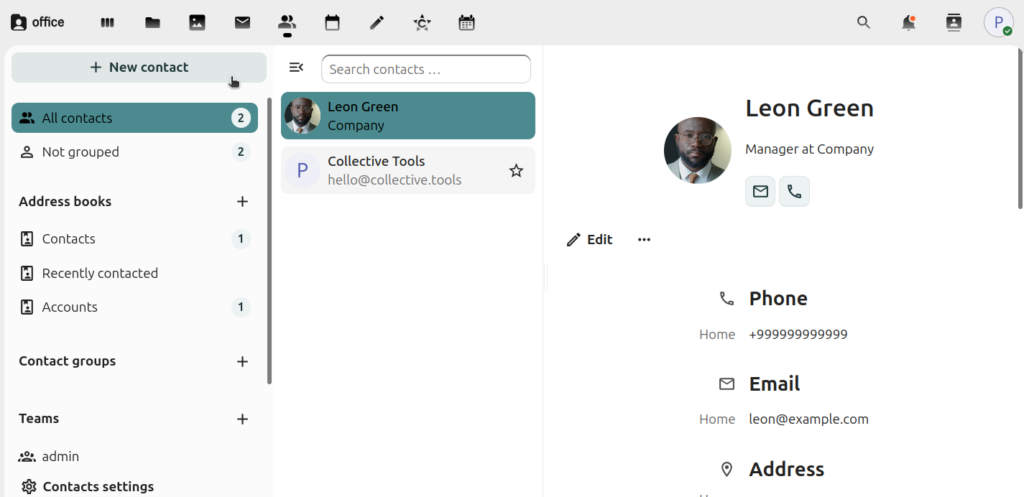
Office has a built-in address book where you can save and search for contacts.
Add a contact:
- Open Office from your Dashboard and select Contacts in the top menu.
- Click + New contact.
- Fill in the name, email and other details.
- Click Save.
Search for contacts:
- Type a name or email address in the search field at the top.
- Click on a contact to see all their details.
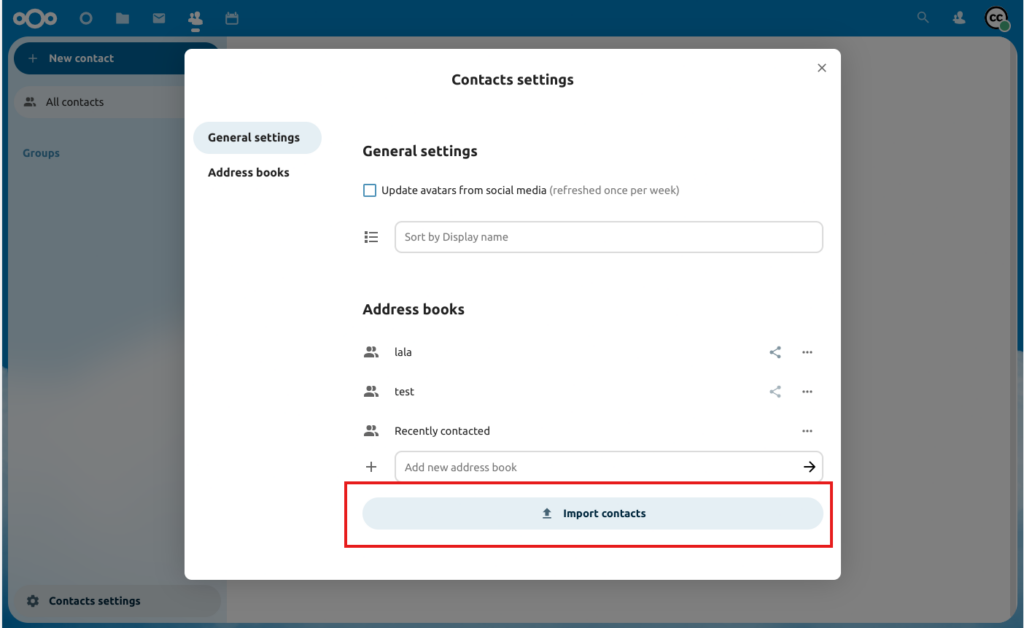
Import contacts from a file:
- Click Contacts settings at the bottom left.
- Click Import contacts.
- Choose which address book the contacts should go into.
- Choose Select local file for a file on your computer, or Import from files for a file already stored in Office.
- Select the file. The number of imported contacts is shown when it finishes.
Contacts are imported from vCard files (.vcf), version 3.0 or 4.0. Most email programmes and phones can export their contacts in that format.
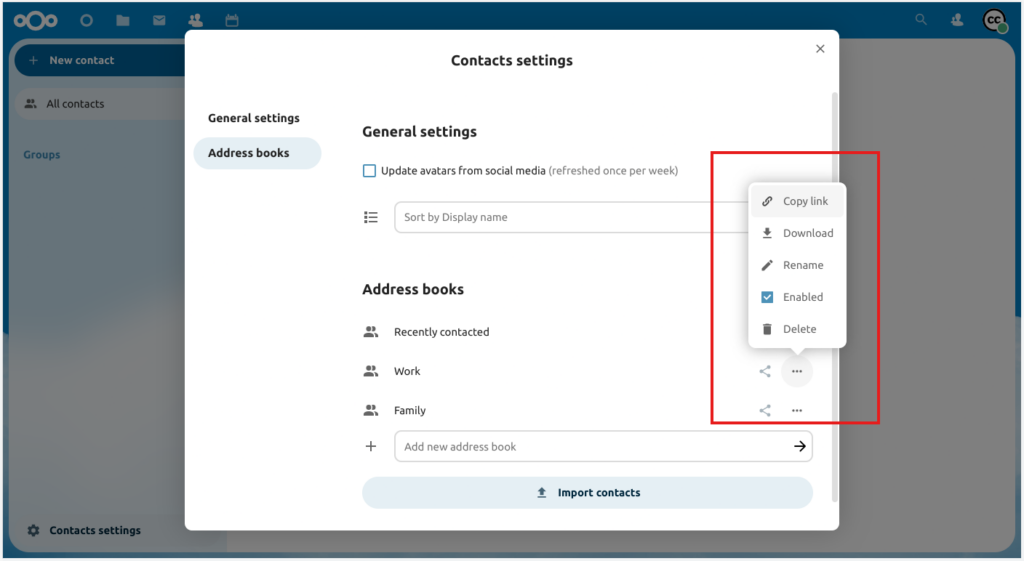
Create and manage address books:
- Click Contacts settings at the bottom left.
- Type a name in the Add new address book field to create one.
- Click the three-dot menu next to an address book to rename it, download it as a file or delete it. The share icon beside it shares the address book with others.
You can keep several address books, for example a private one and one you share with your group. The system address book listing all users is read-only and cannot be changed.
Contacts shared by your organisation appear automatically in the address book.
Built on Nextcloud: Full manual, Forum CC BY 4.0